After deploying the first PKI DB Appliance node, you can create a cluster by adding more nodes, as explained below.
See PKI DB Appliance infrastructure requirements for the supported number of nodes.
To add a PKI DB Appliance node
Create a new PKI DB Appliance node as explained in the following sections.
Open a web browser in the URL obtained when Running PKI DB Appliance.
Do not omit the "https" prefix of the URL.
- On the login page, enter
secrootfor both the username and password. - Review the EULA (End-user License Agreement) and click I Agree to accept the license terms.
- On the welcome screen, click Join an Existing Node.
- Follow the instructions in the Join an Existing Node wizard.
- Click Join in the Node page of the Join Existing Cluster wizard and wait while the joining process completes.
- Log in to the user interface of the newly added node. Use the same credentials as for the nodes already on the cluster.
- Navigate to CLUSTER > Servers.
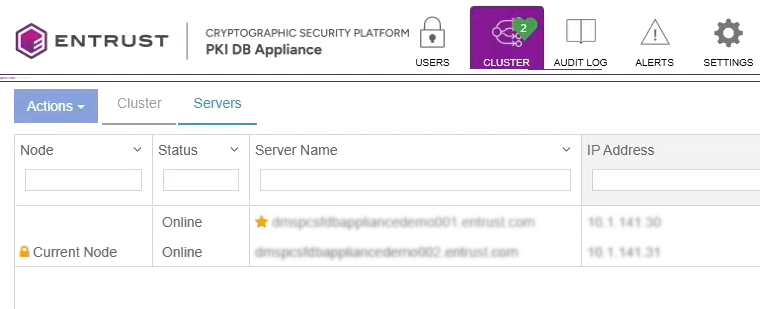
- Wait while the status of the new node switches from Maintenance to Online.
The starred node is the writer node; all the rest are reader nodes.
Get Started
Review the following information on this page of the Join Existing Cluster wizard.
- Access to the cluster you are joining the node to.
- Permissions on both this node and the cluster node to download and import the required certificates and files.
Click Continue.
Download CSR
On this page of the Join Existing Cluster wizard:
- Click Generate and Download CSR
- Save the generated file in a safe place.
Click Continue
Node
On this page of the Join Existing Cluster wizard, you must configure the following settings.
Setting | Value |
|---|---|
Upload SSL Certificate | A P12 file containing an SSL certificate and key pair for the new node |
Upload CA Certificate | A PEM file containing the CA certificate of the SSL certificate |
Cluster node IP or Hostname | The hostname of the IP address of a node already on the cluster |
Passphrase | A passphrase for the joining process |
See below for instructions on obtaining these data
To obtain the node data
- Open a new browser tab to the user interface of a PKI DB Appliance node that is already part of the cluster – for example, the first node that was created.
- In the Cluster page, select Actions > Add a Node.
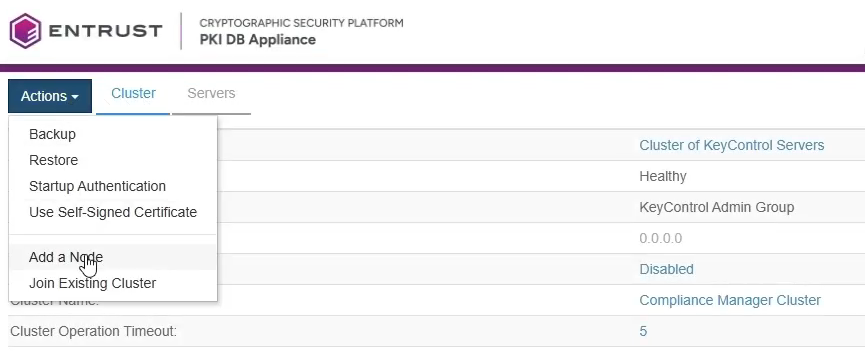
In the Add a Node dialog, click Load File and select the file obtained in the Download CSR page of the Join Existing Cluster wizard.
- Under Passphrase, enter a passphrase for the joining process.
The passphrase must contain at least 12 characters.
- Click Save and Download Bundle to download both an encrypted SSL certificate in P12 format and a CA certificate in PEM format.
- In the Servers page, copy the IP address or hostname of the node.