As explained in Initializing CSP DB Appliance, the web browser will display a warning when you first log in to the user interface because the default TLS certificates are self-signed. See below for instructions on replacing this default certificate.
In a PKI DB Appliance cluster, the TLS certificate of every node must share the same CA certificate chain configured with the clusterctl database set appliance command.
To replace the default TLS certificate of a PKI DB Appliance node
- Generate a PKCS #12 containing a TLS certificate and a key pair. For example, using the Certificate Authority solution.
Open a web browser in the URL obtained when Running PKI DB Appliance.
Do not omit the "https" prefix of the URL.
- Navigate to CLUSTER > Servers.
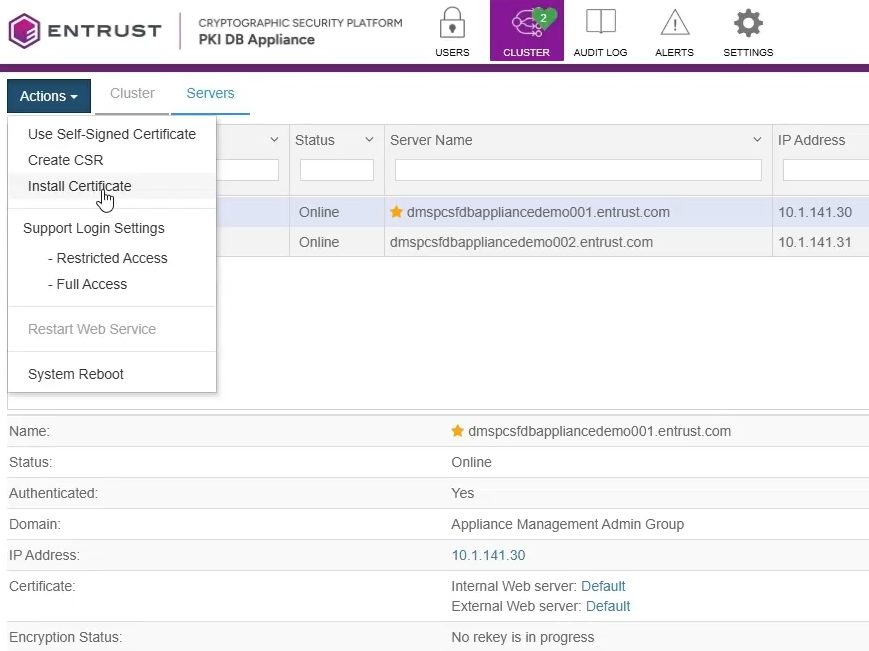
- Select Actions > Install certificate.
- Configure the values in the Install Custom SSL Certificate dialog.
- Click Install Certificate.
- Select the current node in the nodes list.
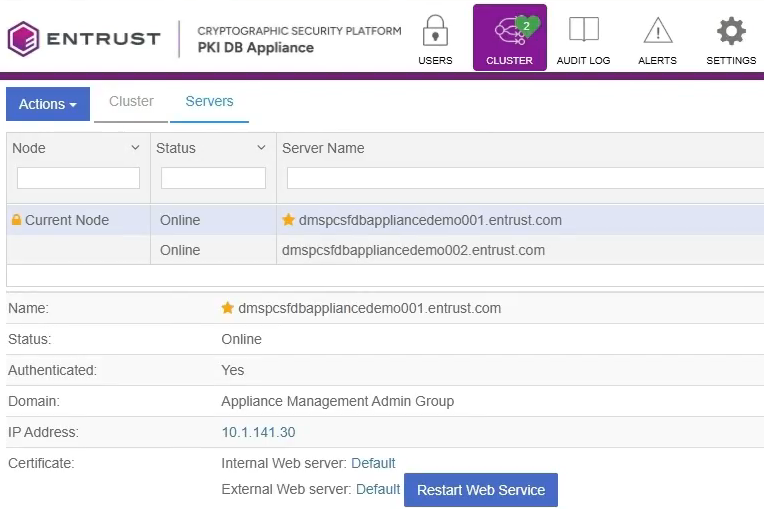
- Click Restart Web Service.
- Click Proceed on the confirmation dialog.
- Relogin into the user interface.
- Navigate to CLUSTER > Servers
- In the Certificate field, check that the certificate type has switched from Default to Custom.
- If the CA certification chain of the certificate has changed, run the clusterctl database set appliance to update it on PKI Hub.
Certificate
Configure the following values on this tab.
Setting | Value |
|---|---|
SSL Certificate | A PEM file containing the SSL certificate |
CA Certificate | A PEM file containing the CA certificate of the SSL certificate |
Web server | Click External to replace the API and user interface certificate. Click Internal to replace the internal web server certificate. |
Private key
Configure the following values on this tab.
Setting | Value |
|---|---|
Private key | A file containing the private key of the SSL certificate |
Password | The password of the private key, if any. |