See below for issuing certificates and key pairs on a PKCS #12 file.
To issue certificates from the Certificate Authority console
Open the following URL in a Web browser.
https://<hostname>/v2/Where
<hostname>is the IP address or domain name selected in General.- Log in to the Management Console as the user described in Creating partition administrators.
- If the user administers more than one partition, select the partition on which to manage certificate authorities and certificates.
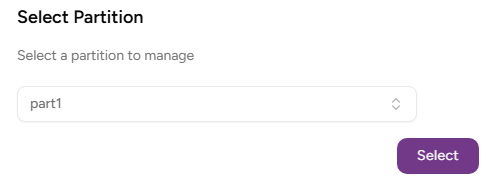
- Click Select.
Click Certificate Authorities on the sidebar.
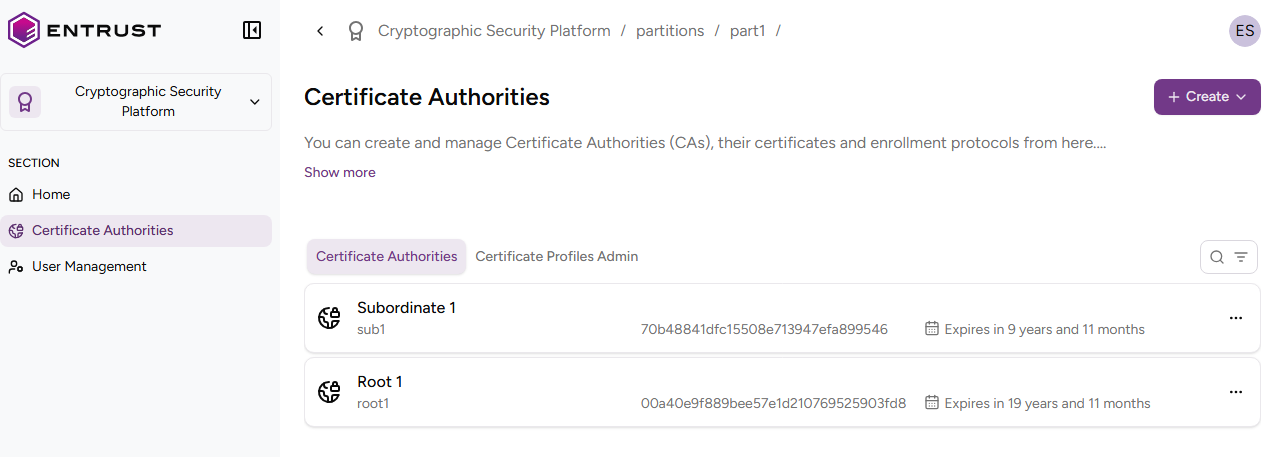
- In the certificate authorities grid, click the name of a certificate authority.
- Click Issue certificate.
- Configure the following settings.
- Click Create.
- Click Download your PKCS #12.
As indicated in the warning message when leaving this page, you won’t be able to download the PKCS #12 file again.
Certificate Type
Select Server-side Generated Key Certificate (PKCS #12).
Mandatory: Yes.
Certificate Profile
The certificate profile for issuing the certificate.
This list only displays profiles configured in the issuing certificate authority.
Mandatory: Yes.
PKCS #12 Password
Enter and confirm the password that will protect the PKCS #12 generated file.
Mandatory: No.
Subject DN Attributes
Select the required Distinguished Name (DN) attributes.
You must enter at least the CN attribute value.
Mandatory: Yes.
Subject Alternative Names
The list of subject alternative names (SAN) for the certificate.
Mandatory: No.