Install the Entrust Proxy for Microsoft CA, as explained in the following sections.
- System requirements for the Entrust Proxy for Microsoft CA
- Creating a Proxy Admin account
- Configuring the Windows domain account
- Adding the Windows domain account to the logon as a service policy
- Installing Java
- Downloading the Entrust Proxy for Microsoft CA installer
- Configuring logs
- Running the Entrust Proxy for Microsoft CA installer
- Uninstalling the Entrust Proxy for Microsoft CA
System requirements for the Entrust Proxy for Microsoft CA
To install the Entrust Proxy for Microsoft CA, you need a machine with Windows Server 2016 (x64) or above.
Creating a Proxy Admin account
Create a Proxy Admin user belonging to the Cert Publishers and Domain User groups.
To create a proxy admin user
- Press Win + R to open the Run dialog.
- Type
dsa.mscand press Enter. - Select Users under the Windows domain
- In the right pane, double-click on mscaproxyadm.
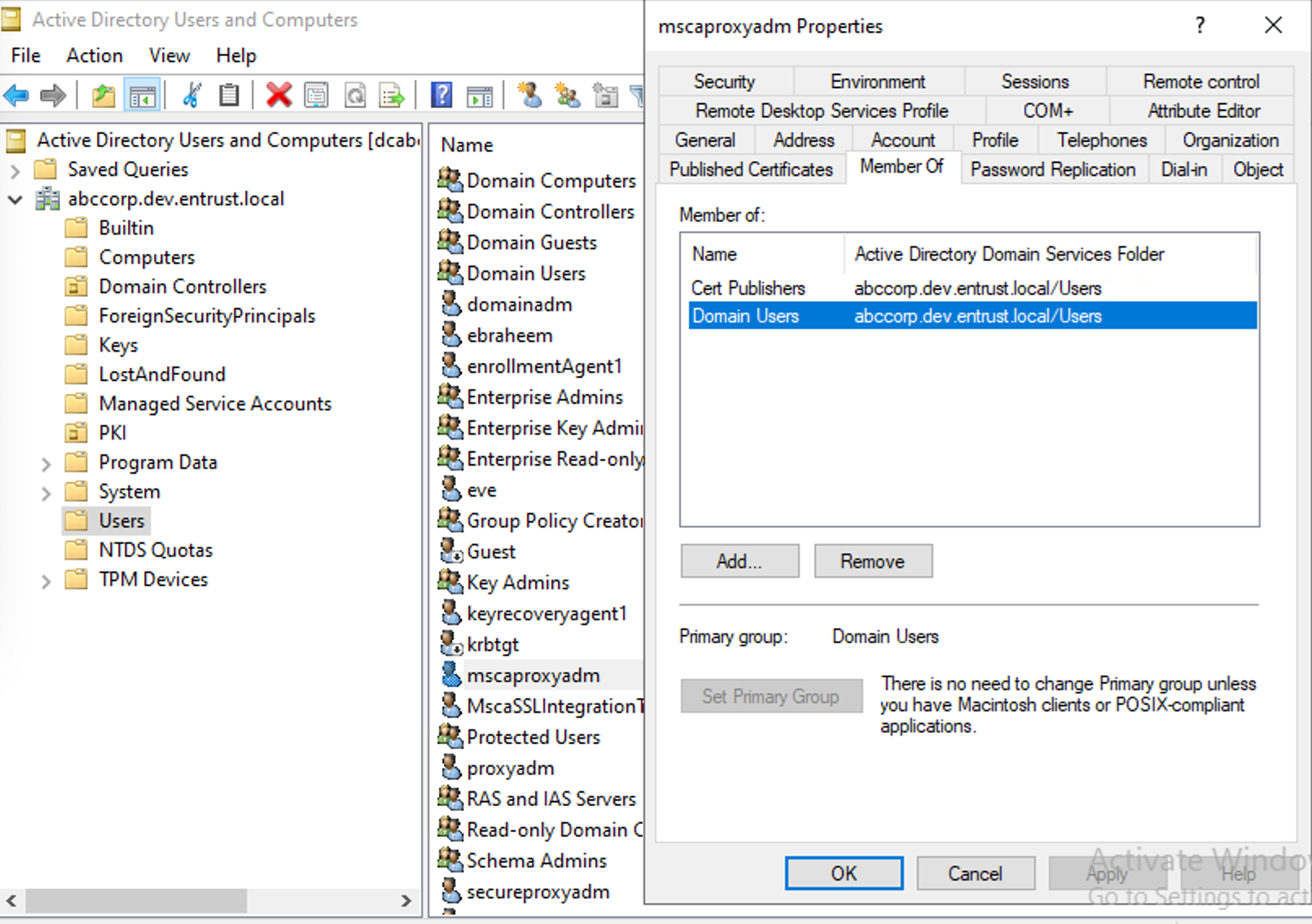
- Create a Proxy Admin user
- Add the users only to the Cert Publishers and Domain User groups.
Configuring the Windows domain account
Configure the Windows login account of the Entrust Proxy for Microsoft CA. See below for the supported combinations when the Entrust Proxy for Microsoft CA and the Domain Controller share the same server or run on different servers.
User | Service startup type | Same server | Different servers |
|---|---|---|---|
A local service account | Automatic or Automatic (Delayed Start) |
|
|
A domain user | Automatic (Delayed Start) |
|
|


In either case, enable only the following user permissions.
- Issue and Manage Certificates
- Request Certificates
- Read
Adding the Windows domain account to the logon as a service policy
Add the new Windows account to the Logon as a service policy.
To add the Windows domain account to the logon as a service policy
- Press Windows + R to open the Run window.
- Type
secpol.mscand press Enter. - In the Local Security Policy window, navigate to Local Policies > User Rights Assignment.
- In the right pane, double-click on Log on as a service.
- Click Add User or Group,
- Select the account created in the previous section, Creating a Proxy Admin account
- .
- Click OK,
- Click Apply.
Installing Java
Install Java on the machine that will host the Entrust Proxy for Microsoft.
To install Java
- Log in using the account created in the previous section, Creating a Proxy Admin account.
- Install one of the following LTS (Long Term Support) Java distributions.
- Oracle Java x86_64 version 17
- OpenJDK 17
- AdoptOpenJDK 17
- Set the
JAVA_HOMEenvironment to the Java installation path. - Extend the value of the
PATHenvironment variable to:%JAVA_HOME%\bin - Run the following command to check the Java version and architecture details.
java -XshowSettings:properties -version
Downloading the Entrust Proxy for Microsoft CA installer
Download and extract the Entrust Proxy for Microsoft CA installer files.
To download the Entrust Proxy for Microsoft CA installer
- Log in trustedcare.entrust.com
- Go to PRODUCTS > Cryptographic Security Platform
- Select the latest version.
- Click the download link of the Entrust Proxy for Microsoft CA.
- Unzip the compressed file contents to your selected installation directory on the Windows machine – for example, in
c:\mscaproxyInstalling into
c:\Program Filesmay not be functional due to Windows privilege enforcement.
Configuring logs
Optionally, edit the configuration files to modify the default log recording settings.
Configuration file | Parameter | Value |
|---|---|---|
MSCAProxy.xml | logpath | The folder where to save logs. |
config\application.yml | com.entrust.mscaproxy | The supported log levels. Supported values in increasing severity are |
If you edit these pages after starting Entrust Proxy for Microsoft, run the MSCAProxy.exe restart command to restart it.
For example, adding the following code to the config\application.yml file sets the log level to INFO.
logging: level: root: INFO com.entrust.mscaproxy: INFORunning the Entrust Proxy for Microsoft CA installer
See below for running the Entrust Proxy for Microsoft CA installer and registering the Entrust Proxy for Microsoft CA as a Windows service.
To run the Entrust Proxy for Microsoft CA installer
- Log in to a Windows machine as the Proxy Admin user (created in section Creating a Proxy Admin account).
- Run the following command.
MSCAProxy.exe install /p - When prompted, type the
<domainName>domain name and the<proxyAdminUserName>Proxy Admin username. Supported formats are:- User Principal Name (UPN) – for example:
<domainName>@<proxyAdminUserName> - The Down-Level Logon Name – for example:
<domainName>\<proxyAdminUserName>
- User Principal Name (UPN) – for example:
- Type the password of the Proxy Admin user.
- Type "y" to allow the log-on as a service.
The installer does not wait for you to press the Enter key.
Uninstalling the Entrust Proxy for Microsoft CA
Run the following command as an administrator in case you want to uninstall the Entrust Proxy for Microsoft CA.
MSCAProxy.exe uninstall