See below for browsing and optionally updating user roles.
To manage and update roles
Open the following URL in a Web browser.
https://<machine>:8443/management-consoleWhere
<machine>is the IP address or domain name of the machine hosting PKI Hub.This release changes the URL port to 8443. Update your bookmarks accordingly.
- Log in to the Management Console as a user with a role granting user management permissions – for example, the initial
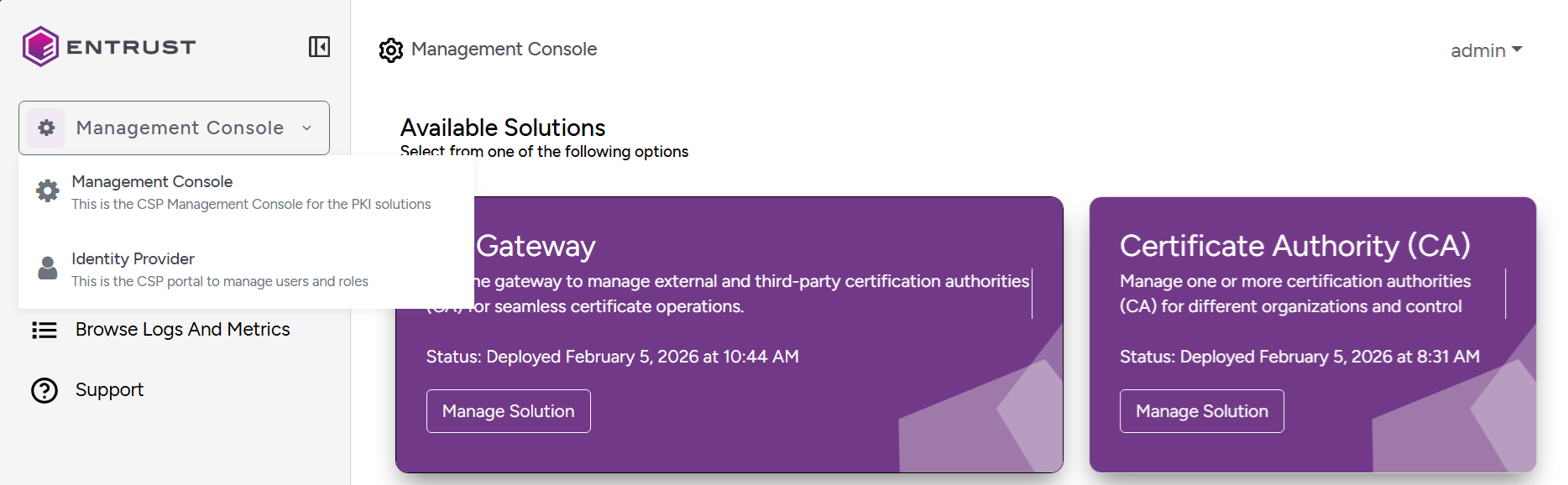
adminadministrator user. Select Management Console > Identity Provider in the sidebar.
- Click Roles in the sidebar of the user management console.
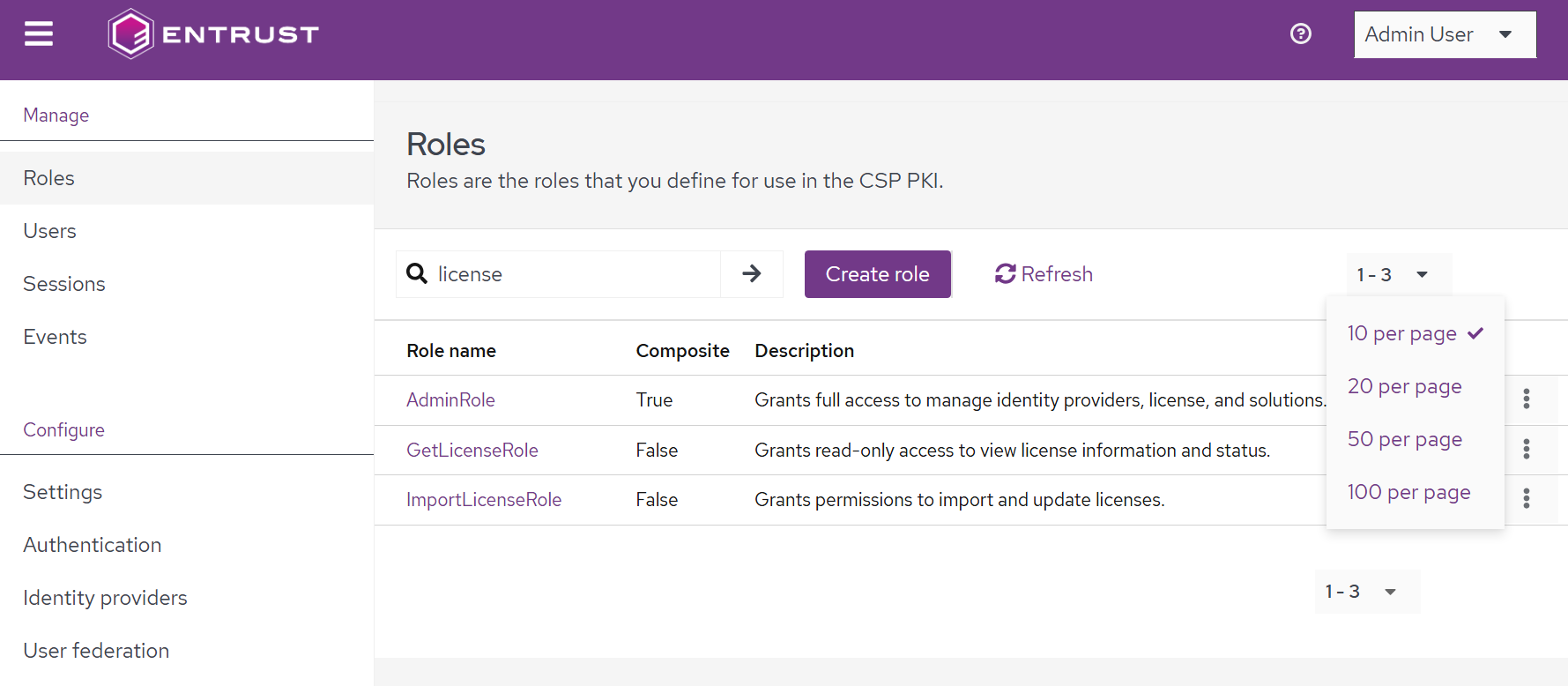
- Browse the list of existing User roles (use the bottom-left selector to display more roles).
- Roles with the Composite column set to
Trueare sets of roles. - Roles with the Composite column set to
Falseare single roles.
- Roles with the Composite column set to
- Browse or update the following role details.
Details
The name and description of the role.
Associated roles
The list of inherited and associated roles.
- Uncheck the Hide inherited roles box to display the inherited roles.
- Click Assign role and select a role to associate it.
- Select an associated role and click Unassign to remove an associated role.
The Inherited column displays True for inherited roles and False for the associated ones.
Role users will be granted the permissions of all inherited and associated roles.
Attributes
Key-pair values to store permission information.
Do not modify the existing attribute configuration of a role. Use associated roles instead to modify the permissions granted to user roles.
Users in role
The list of users to whom the role has been granted.
Admin events
A log record of the events performed by the role users in the administration console.