See below for browsing and assigning user roles.
To browse and assign roles
Open the following URL in a Web browser.
https://<hostname>/v2/Where
<hostname>is the IP address or domain name selected in General.- Log in to the Management Console as the user described in Creating partition administrators.
- If the user administers more than one partition, select the partition on which to manage certificate authorities and certificates.
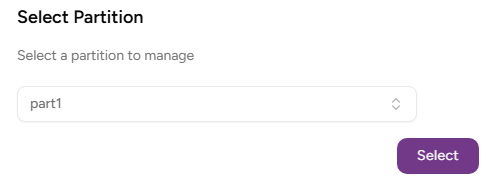
- Click Select.
- Click User Management in the sidebar and select the Roles tab.
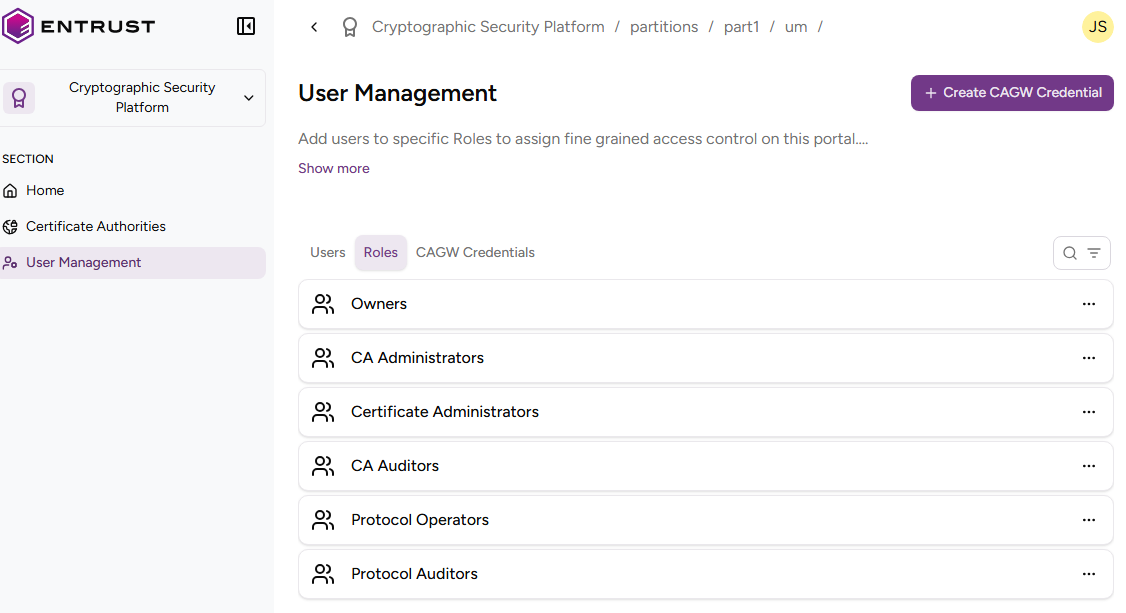
Browse the list of role users. - Click the name of a role to check the list of users with this role.
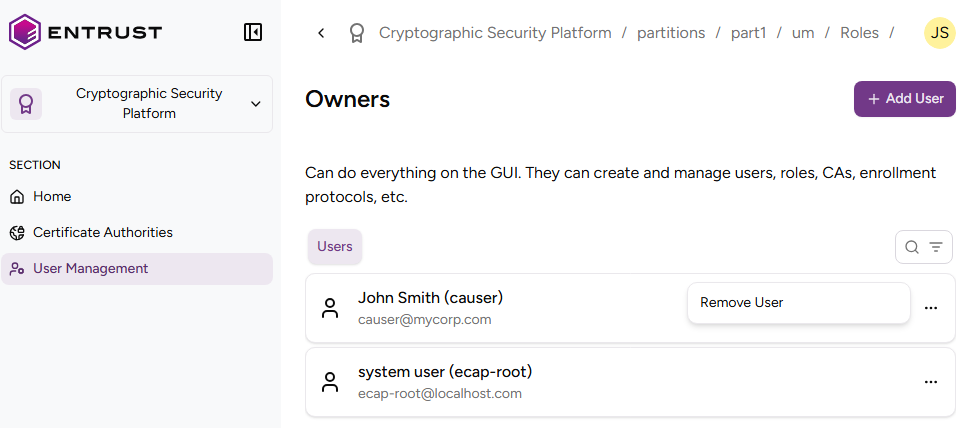
- Manage the list of users with the role:
- Click Add User to grant the roles to new users.
- Click the three dots to the right of a user, and select Remove User.
Owners
Users with this role can perform all the supported operations.
CA Administrators
Users with this role can perform the following operations on certificate authorities.
- Create
- Configure
- Delete
Certificate Administrators
Users with this role can perform the following operations on certificates.
- Issue
- Browse
- Export
- Revoke
- Suspend
- Unsuspend
CA Auditors
Users with this role can:
- Browse certificate authorities
- Browse certificates
- Download certificates
- Browse users
- Browse certification profiles
- Browse CA Gateway credentials
Protocol Operators
Users with this role can enroll certificates using a client application.
Protocol Auditors
Users with this role can audit certificate enrollment configuration.