See below for adding an external root CA – that is, a root certificate authority created outside the Certificate Authority solution.
The following steps will ask you to have the certificate of this external CA at hand.
To add an external root Certificate Authority
Open the following URL in a Web browser.
https://<hostname>/v2/Where
<hostname>is the IP address or domain name selected in General.- Log in to the Management Console as the user described in Creating partition administrators.
- If the user administers more than one partition, select the partition on which to manage certificate authorities and certificates.
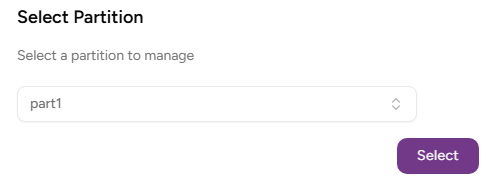
- Click Select.
Click Certificate Authorities on the sidebar.
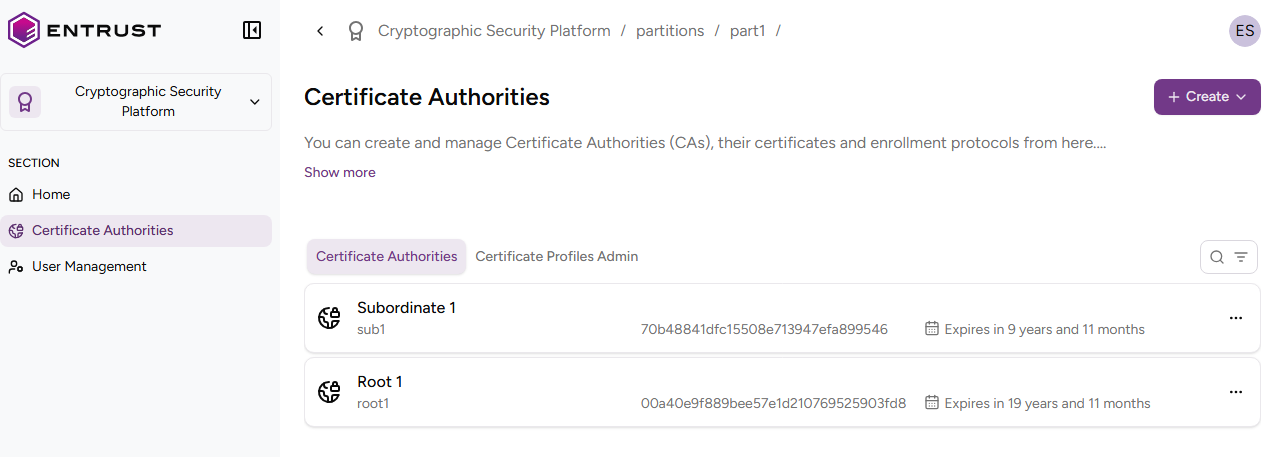
- Click Create > Certificate Authority.
- Configure the following settings.
- Click Create to create the new Certificate Authority.
CA Type
Click External Root Certificate Authority.
Mandatory: Yes.
CA ID
Type a unique identifier for the new Certificate Authority within its organization. This identifier:
- Must be 3-18 characters long.
- Can only include lowercase letters, numbers, underscores ("_"), and hyphens ("-").
Do not reuse the identifier of a Certificate Authority for up to 24 hours after it has been deleted.
Mandatory: Yes.
Friendly Name
A friendly name for the new Certificate Authority in the user interface.
Mandatory: No. This optional value defaults to the one assigned to the CA Identifier field.
Root CA Certificate
Click Choose file and import the PEM-encoded certificate of the external CA.
Mandatory: Yes.