Remote operations with Certificate Authority require CA Gateway API credentials. See below for creating these credentials.
To create a CA Gateway API credential
Open the following URL in a Web browser.
https://<hostname>/v2/Where
<hostname>is the IP address or domain name selected in General.- Log in to the Management Console as the user described in Creating partition administrators.
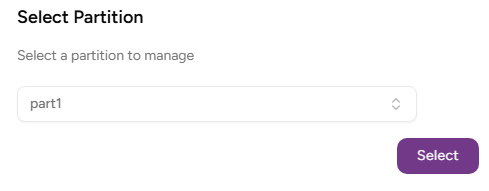
- If the user administers more than one partition, select the partition on which to manage certificate authorities and certificates.
Click User Management in the sidebar and select the CAGW Credentials tab.
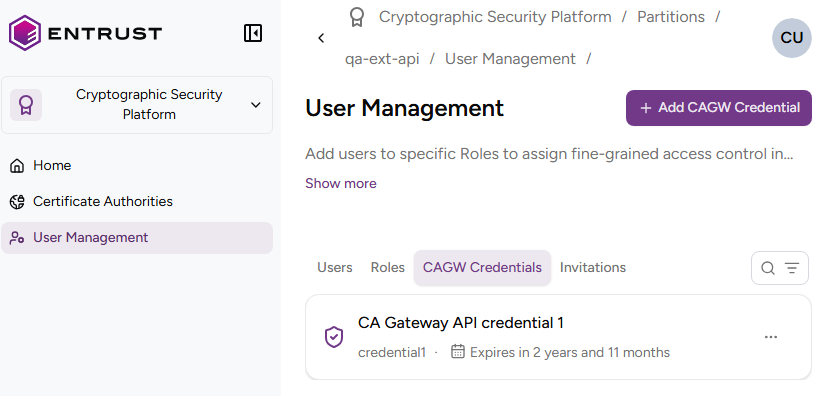
Click Add CAGW Credential.
Fill in the Credential identifier and Friendly Name fields.
Click Create
Check the details of the new PKCS #12 credential.
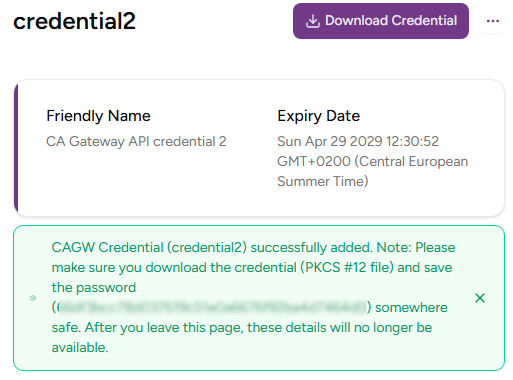
Copy the password displayed in the information note.
You won’t be able to copy the password or download the PKCS #12 file after leaving this page.
Click Download Credential to download the
pkcs12-<credential>.p12file, where<credential>matches the Credential identifier value.Click Uwer Management in the sidebar.
Click Continue in the Are you sure you want to leave this page? dialog.
In the CAGW Credentials tab, click the three dots ("…") to the right of the new credential.
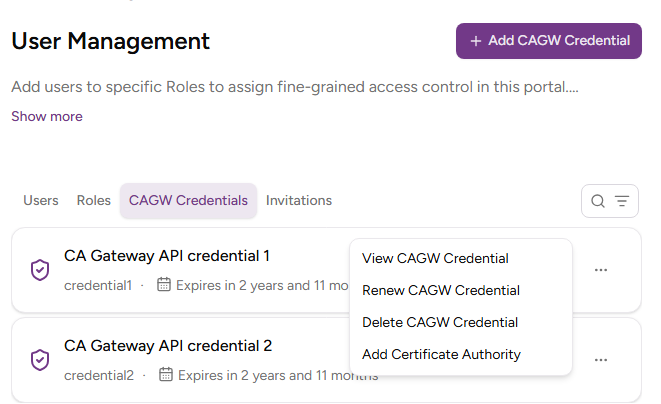
Select Add Certificate Authority.
In the Certificate Authority list, select the CA on which the credential holders will have permissions.
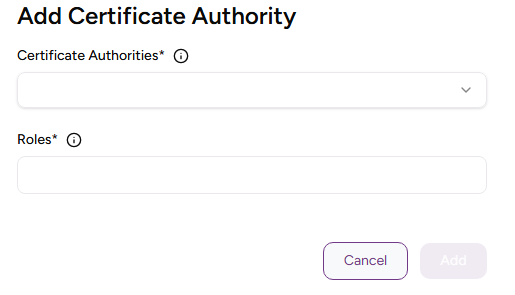
In the Roles list, select the roles granted to the credential holders in the CA.
Click Add.